Introduction
Job shop scheduling is genuinely hard. Every order follows its own routing through shared machines, priorities shift daily, and a single breakdown can knock three jobs off schedule simultaneously. Getting sequencing right directly affects on-time delivery and machine utilization — which is why it matters more than most shops treat it.
Excel is where almost every job shop starts. It's free, familiar, and flexible enough to get something workable on the page. The problem is that "workable" covers a wide range — from a well-structured finite schedule to a color-coded list that nobody trusts by Wednesday.
This guide walks through how to set up Excel scheduling properly, what determines whether it holds under real shop conditions, the mistakes that break it, and the signals that it's time for a purpose-built tool.
Key Takeaways
- Excel can handle job shop scheduling, but only with intentional structure — a raw list of jobs is not a schedule
- Routing dependencies, setup times, and operator availability must all be actively managed or the schedule degrades fast
- Weekly "bucket" planning creates an illusion of balance that collapses on the floor
- Moving to dedicated software makes sense when disruptions cascade faster than you can manually correct them
- Purpose-built finite schedulers handle the structural logic Excel cannot enforce automatically
How to Set Up Job Shop Scheduling in Excel
Before opening a spreadsheet, gather three foundational inputs: your full job backlog (order number, part, quantity, due date, priority), the routing for each job type, and a complete list of workstations and machines. Without these, you're scheduling blind.
Step 1: Define Resource Capacity Per Workstation
List every machine and every operator who needs to be scheduled. For each resource, define standard daily availability — hours per shift, days per week — and treat this as a hard ceiling, not a suggestion.
Build a skill matrix alongside this: map which operators are qualified to run which machines. Skipping it means the schedule will regularly assign work that can't actually be executed — regardless of how well everything else is set up.
Step 2: Build the Job Routing Structure
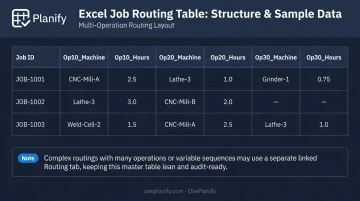
For each job type, define the sequence of operations and the workstation required at each step. In Excel, this means a job table with columns for operation number, required machine, and estimated run time.
The key structural point: job shop routings differ by job. Your template must accommodate variable sequences, not a fixed column order. A column layout like Op10_Machine | Op10_Hours | Op20_Machine | Op20_Hours works for simple shops; more complex routings may need a separate routing tab linked to the main schedule.
Step 3: Assign Jobs to Workstations and Build the Gantt-Style Timeline
Using planned start dates derived from due dates and lead times, assign each operation to a specific machine and time slot. Two common Gantt layouts work here:
- Jobs as rows, time as columns — better for tracking individual job progress
- Machines as rows, jobs plotted against them — better for spotting workstation overloads
Check for capacity conflicts explicitly. If two operations claim the same machine in the same window, one moves. This sequencing decision is where Excel demands the most manual judgment — and where most schedules either hold together or fall apart.
Resolving those conflicts is only half the picture. Once you know what fits where, you still need rules for what runs first.
Step 4: Add Setup Time and Job Priority Logic
Setup times must be added as explicit time blocks between operations on the same machine — not absorbed into run time and not left out entirely. Longer cleaning between material types, color changes, fixture swaps: these are capacity consumers that belong on the schedule as discrete entries.
Choose a priority rule and document it in the sheet:
- Earliest Due Date (EDD): Sequence jobs by ship date — whoever's due first runs first
- Shortest Processing Time (SPT): Run the fastest job first to clear the queue and maximize throughput
- Customer-assigned priority: Honor externally set urgency flags, regardless of internal sequence logic
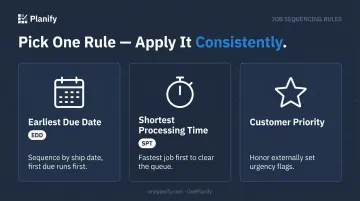
Whichever rule you choose, write it down. If different shifts apply different logic, the schedule drifts — and nobody can explain why.
Step 5: Establish a Status-Tracking and Update Cadence
Add a status column for each operation — planned, in progress, complete, on hold — and a notes field for exceptions like machine downtime or material delays. Keep these columns visible in the main view; buried status is no status.
Decide who owns updates and how often. In a high-mix environment, daily updates before shift start are the minimum viable cadence. A schedule updated once a week in a dynamic job shop is effectively decorative by midweek.
Key Variables That Affect Schedule Accuracy
An Excel-based job shop schedule is only as reliable as the variables feeding it. If any one of these is poorly defined or inconsistently maintained, the whole schedule degrades.
Setup Times Between Jobs
Unlike repetitive production, job shops switch between radically different jobs on the same machine. Uncounted setup time directly inflates queue times and delays downstream operations — and it does so invisibly. Research on dynamic job shop environments confirms that setup-oriented dispatching rules outperform standard rules, with the performance gap widening as shop load and setup-time ratios increase.
In some high-variety environments, setups can run four hours while average processing times are under a minute. If those four hours aren't on the schedule, every committed due date is built on a lie.
Routing Complexity and Dependency Chains
Multi-step routings create hard dependencies: Operation B cannot start until Operation A is complete. Excel does not enforce these links automatically. Move one operation and you must manually trace every downstream successor — a process that becomes genuinely unmanageable as job count grows.
Cornell's optimization reference classifies job shop scheduling as NP-hard, meaning the combinatorial complexity of routing, sequencing, and resource conflict grows exponentially with the number of jobs and machines. This is the structural reason manual rescheduling after any disruption becomes more error-prone as your job count climbs.
Resource Availability: Machines and Operators
Most Excel job shop schedules model machine availability but not operator availability. In high-mix, low-volume shops, specific operator skills are often the actual binding constraint. Dual-resource-constrained scheduling research confirms that worker skills and availability must be treated as a separate, finite resource — not assumed to be interchangeable.
A schedule that treats all operators as interchangeable will regularly assign jobs no one on that shift can actually run. The result is real-time firefighting that the schedule never reflects.
Job Priority Rules
Without a documented, consistently applied priority rule, sequencing decisions become ad hoc. Different planners and different shifts make different calls, and the schedule drifts from the plan without any single visible cause.
Pick a rule and apply it uniformly across all planners and shifts. Common starting points include:
- Earliest Due Date (EDD) — sequences jobs by due date to minimize lateness
- Shortest Processing Time (SPT) — clears quick jobs first to reduce average queue time
- Critical Ratio (CR) — ranks jobs by time remaining vs. work remaining, useful when due dates vary widely
- First In, First Out (FIFO) — simple and defensible when priorities are genuinely equal
The specific rule matters less than applying it consistently. An imperfect rule applied uniformly beats an optimal rule applied selectively.
Common Mistakes When Scheduling Job Shops in Excel
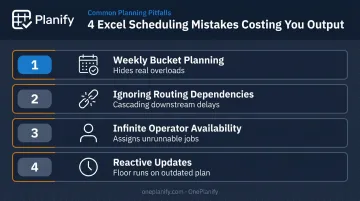
Excel scheduling mistakes tend to follow recognizable patterns. These four show up repeatedly in job shops — and each one quietly erodes on-time delivery before anyone connects the cause.
Weekly bucket planning instead of operation-level finite scheduling. Assigning "80 hours of CNC work this week" without specifying which job runs when on which machine creates an illusion of balance. The overloads only surface when jobs actually start. As Microsoft's finite capacity planning documentation notes, finite scheduling respects actual resource limits — a load bucket does not.
Ignoring routing dependencies when rescheduling. When a machine goes down, planners typically update the affected operation but not its successors. The error cascades silently: downstream jobs are still scheduled to start based on the original completion time, which no longer exists. Adding a "predecessor complete?" check column that flags any operation whose upstream step has slipped catches this before it compounds.
Treating employee skill constraints as infinite. Assuming any available operator can run any machine is the most common capacity modeling error in shops where cross-training is limited. A skill matrix addresses this directly, but only if planners actually reference it when making assignments — not just when building the initial schedule.
Updating reactively rather than proactively. Incidents accumulate, the planner reconciles them once a week, and the shop floor runs off a plan that stopped reflecting reality two days ago. In high-mix environments, even a half-day lag between a disruption and a schedule update can produce cascading delays that compound through the week.
When to Move On: Alternatives to Excel
The warning signs are rarely a single event. They accumulate: the schedule is perpetually behind, the planner is the only person who understands it, disruptions take hours to re-sequence, and the floor has stopped trusting the plan and started improvising. When that last point is true — when the team has abandoned the schedule in favor of informal coordination — the spreadsheet has already failed.
Dedicated Finite Scheduling Software
This category is purpose-built for job shop complexity. It's the right fit when the shop needs to respect machine capacity alongside shift calendars, manage sequence-dependent setups, and handle routing dependencies automatically — without rebuilding the schedule from scratch after every disruption.
OnePlanify's Planify, for example, handles all of this in one place:
- Enforces finite capacity so no machine is double-booked
- Locks routing dependencies (no downstream operation starts before its predecessor completes)
- Models sequence-dependent setup times as explicit time blocks
- Replans the entire schedule board in seconds when a machine goes down or a rush order arrives
- Includes a "Pretend mode" so planners can preview disruption impact before committing changes to the live schedule
The trade-off is a learning curve and a subscription cost. The return is a schedule the floor can actually trust and act on.
Advanced Planning and Scheduling (APS) Systems
APS suits larger operations with higher order volumes, multiple plants, or complex optimization objectives — minimizing makespan while balancing WIP across work centers, for instance.
The trade-offs are significant:
- More optimization capability than dedicated scheduling tools
- Higher implementation complexity and longer deployment timelines
- Substantially greater cost — a cloud APS study found few manufacturing SMEs had implemented APS precisely because of these barriers
For most small-to-mid-sized job shops, APS is more system than the problem requires.
ERP with Built-In Scheduling Module
ERP scheduling makes sense when scheduling is inseparable from inventory, purchasing, and order management — when the shop needs a connected planning system, not just a better Gantt chart.
The limitation to understand: ERP scheduling modules typically assume infinite capacity. They're strong for material and order management, but weaker for real-time finite sequencing on the floor. For high-mix job shops where sequence decisions happen daily, that gap matters.
Frequently Asked Questions
Does Excel have a job shop scheduling template?
Excel has no built-in job shop scheduling template. Free downloadable templates exist from sources like Smartsheet, but generic production templates typically cover task names, start/end dates, quantities, and status — not job routing sequences, workstation assignments, setup times, or operation-level dependencies. A job-shop-specific template needs all of those fields.
What is job shop scheduling?
Job shop scheduling is the process of assigning and sequencing operations for jobs that each follow a unique route through the shop — unlike flow-line or batch production, where all items take the same path. Because every order can visit workstations in a different order, the scheduling problem is significantly more complex than in other production environments.
What are the biggest limitations of Excel for job shop scheduling?
Excel has three structural weaknesses for job shop work:
- Doesn't enforce routing dependencies automatically
- Can't recalculate the schedule when disruptions occur
- Can't balance machine and operator capacity at the same time
All three require continuous manual intervention to maintain any semblance of accuracy.
How do you handle sequence-dependent setup times in Excel?
Add setup times as separate time blocks between operations on the same machine — not absorbed into run time. A setup time matrix, indexed by job-type-to-job-type transitions, is the most reliable way to capture the full range of changeover costs. Reference it when making sequencing decisions, and update it when new job types are introduced.
When should a job shop switch from Excel to scheduling software?
Watch for these trigger points:
- The planner spends more time maintaining the spreadsheet than using it to make decisions
- Disruptions cascade faster than the schedule can be manually corrected
- The shop floor team has stopped trusting the plan and started improvising around it
What is the difference between finite and infinite scheduling?
Finite scheduling respects actual resource limits — it only assigns work that machines, operators, and shift windows can realistically handle, and pushes delivery dates out when capacity falls short. Infinite scheduling ignores those limits, producing plans that look balanced on paper but regularly overload resources in practice.